
Restaurant POS. Keep the whole order in view.
From a quick takeaway to a table with special requests, give the counter and kitchen a clear, shared order record.
Built around service
Choose dine-in, takeaway or delivery, select available dishes and supported options, and attach preparation notes. Named service types retain their underlying service workflow.
Review before committing
Review quantities, prices and configured tax or service-charge amounts. Supported fixed and percentage staff discounts keep their original basis with the order.
Keep changes traceable
Supported queued-order additions and voids preserve a history rather than silently replacing what the team originally received.
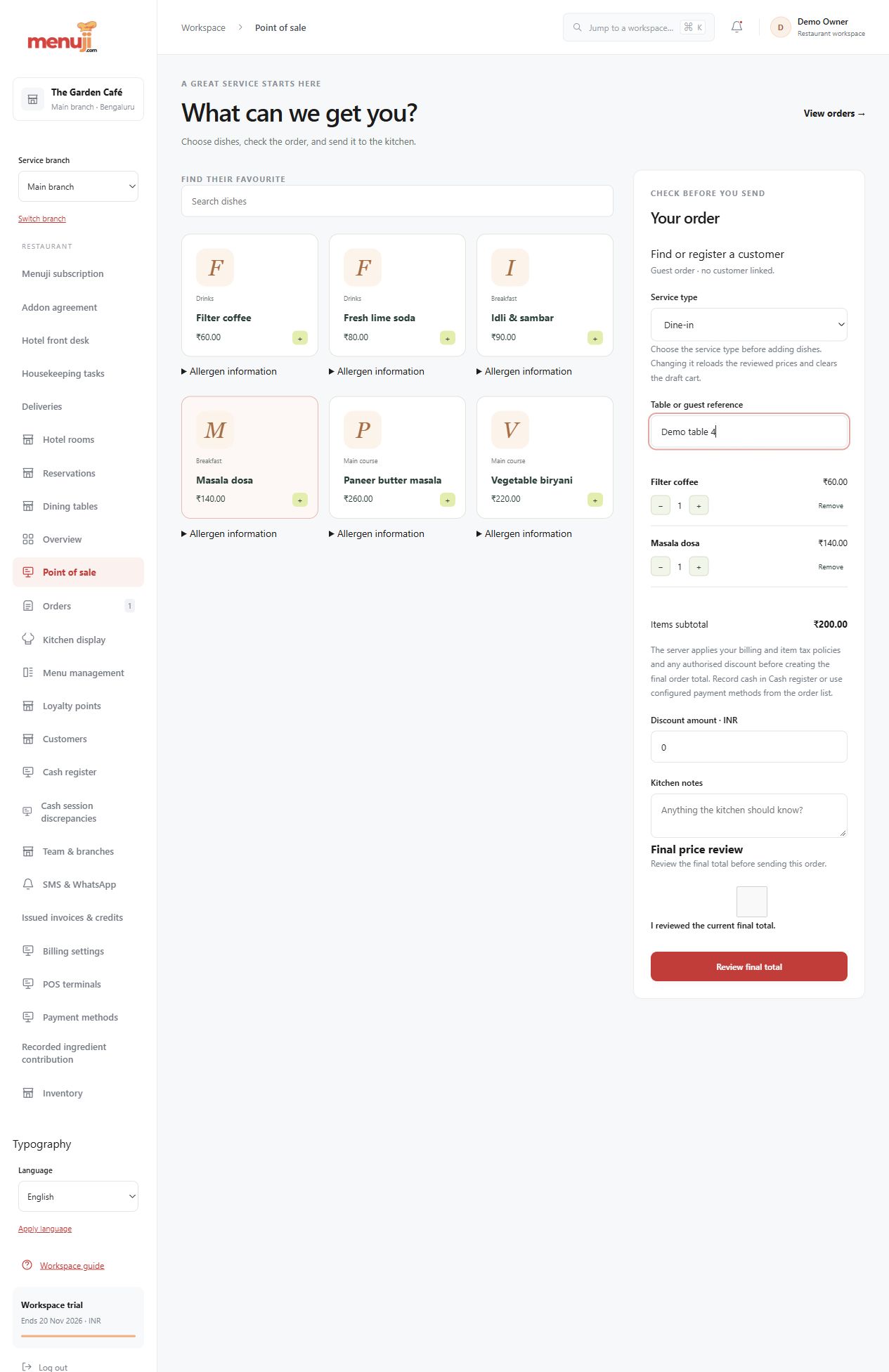
- 01
Choose the branch and service type.
- 02
Add dishes, supported choices and notes.
- 03
Review the order and send it into preparation.
Check the details.
Internet access is required. Discount, amendment, reward and payment combinations have specific eligibility rules; percentage discounts and Loyalty redemption cannot currently be combined.
Good questions.
Can I enter different service types?
Yes. Staff order entry supports dine-in, takeaway and delivery. Related customer workflows require their own configuration.
Can staff change an existing order?
Supported queued-order additions and voids are reviewed and recorded. Financial or preparation state can restrict later changes.
Bring your menu.
Walk through a real order.
Explore the workflow, check the details and choose the setup that fits your restaurant.